Heal has new features coming to help make Doctors, Dentists, Nurses and Admin team members’ lives easier, you can learn about these below.
|
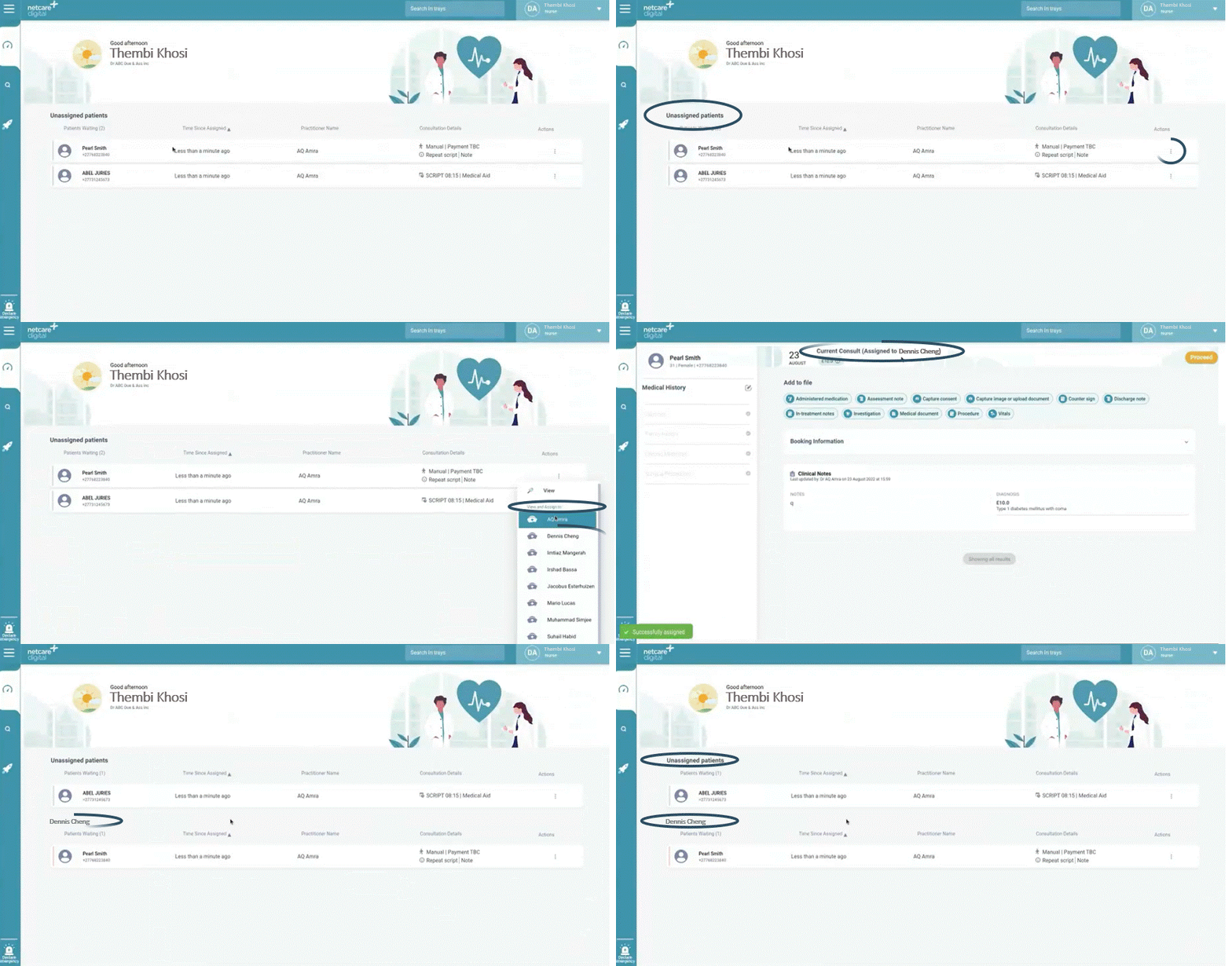
From the nursing dashboard you are now able to assign patients to a specific nurse. You can do this by clicking on the three dots to the right of the patient’s name in the queue, viewing the drop down list of nurses at your practice and selecting the relevant nurse you want to assign to. The three dots also allows you to reassign to another nurse, or back to the common queue should the need arise.
|
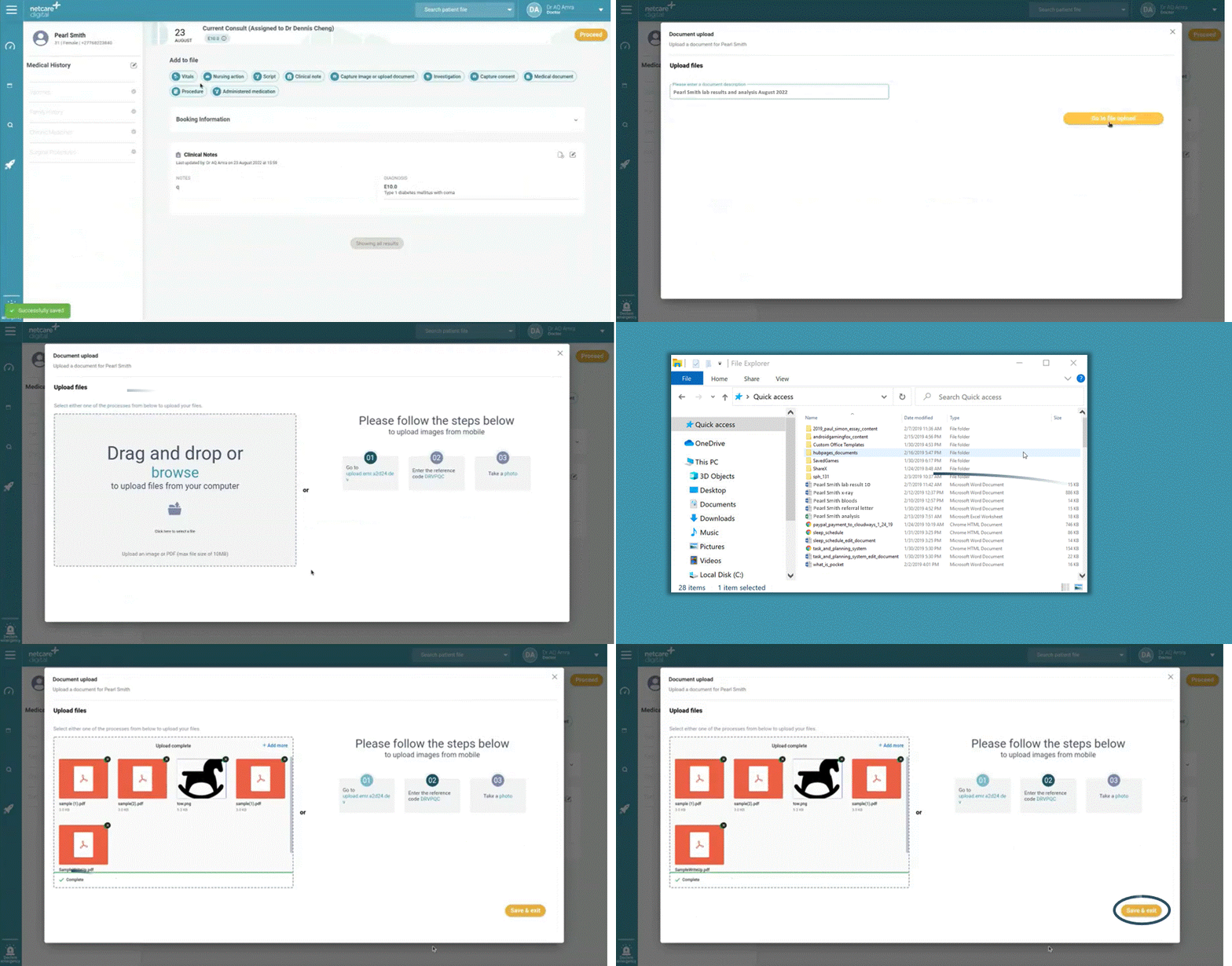
You are now able to upload multiple documents. You can do this by navigating to the document upload function, adding a document description and then simply dragging and dropping multiple documents and images into the drag and drop box.
|
If you’ve incorrectly captured a clinical note, medication or script, you can now “remove” these notes, in accordance with the HPCSA guidelines for medical records, as well as add a reason for removing it. To do this, simply go to the history of the patient, where you will now find the “remove” button at the top right of the note. This will result in the notes being “struck out” and marked as removed on the system.
|
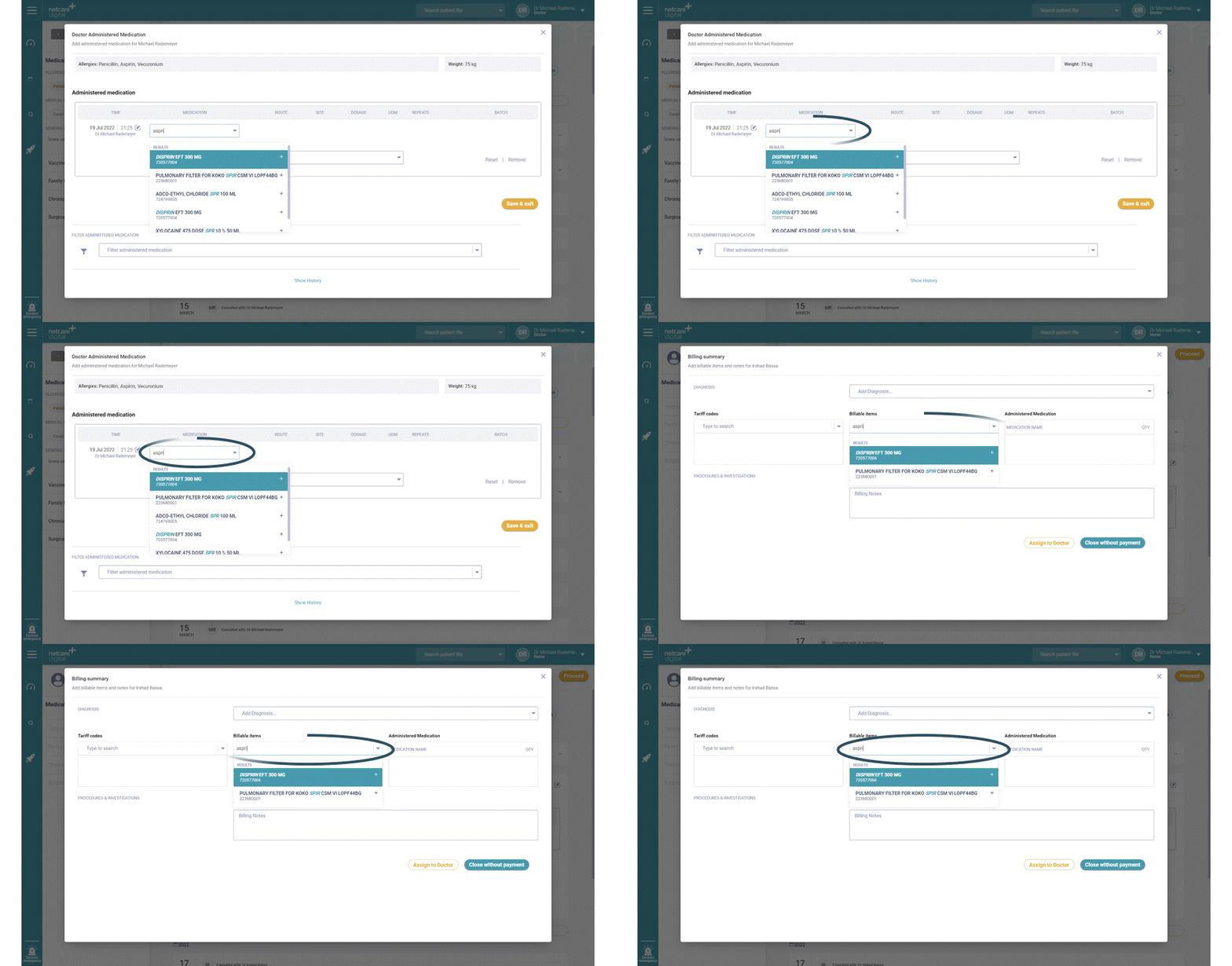
You are now able to easily search for stock using the NAPPI code or E-Live Stock code. You can go about this by following your normal process to add items e.g., administered medication or the billable items list, and enter either the name, NAPPI or stock code of the item you need.
|
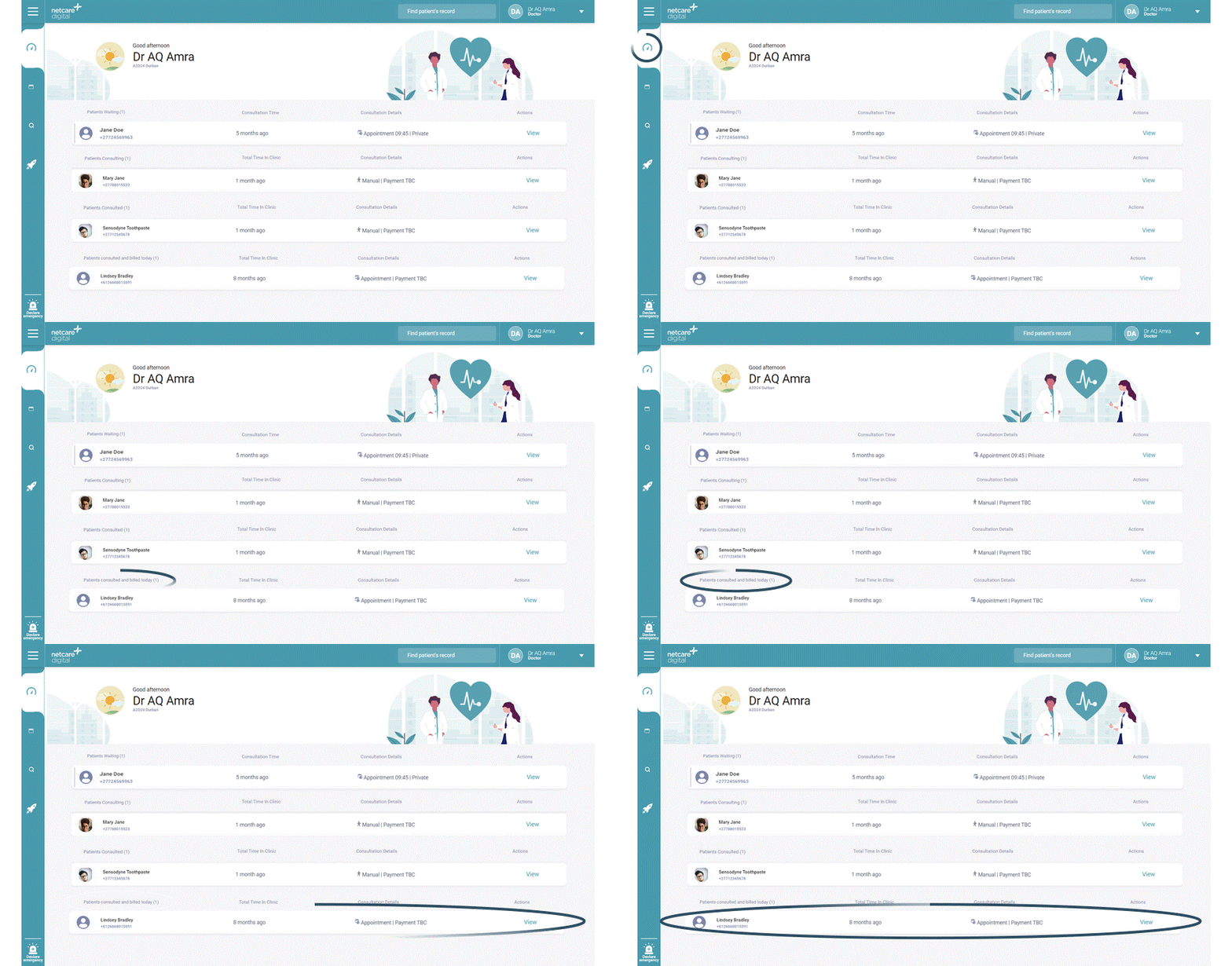
Your dashboard will now include a list of all of the patients you have consulted for the day. This information will be visible for the day, even post billing being completed for that patient. You can find the list of patients in the section labelled “Patients consulted and billed today” on the dashboard.
|
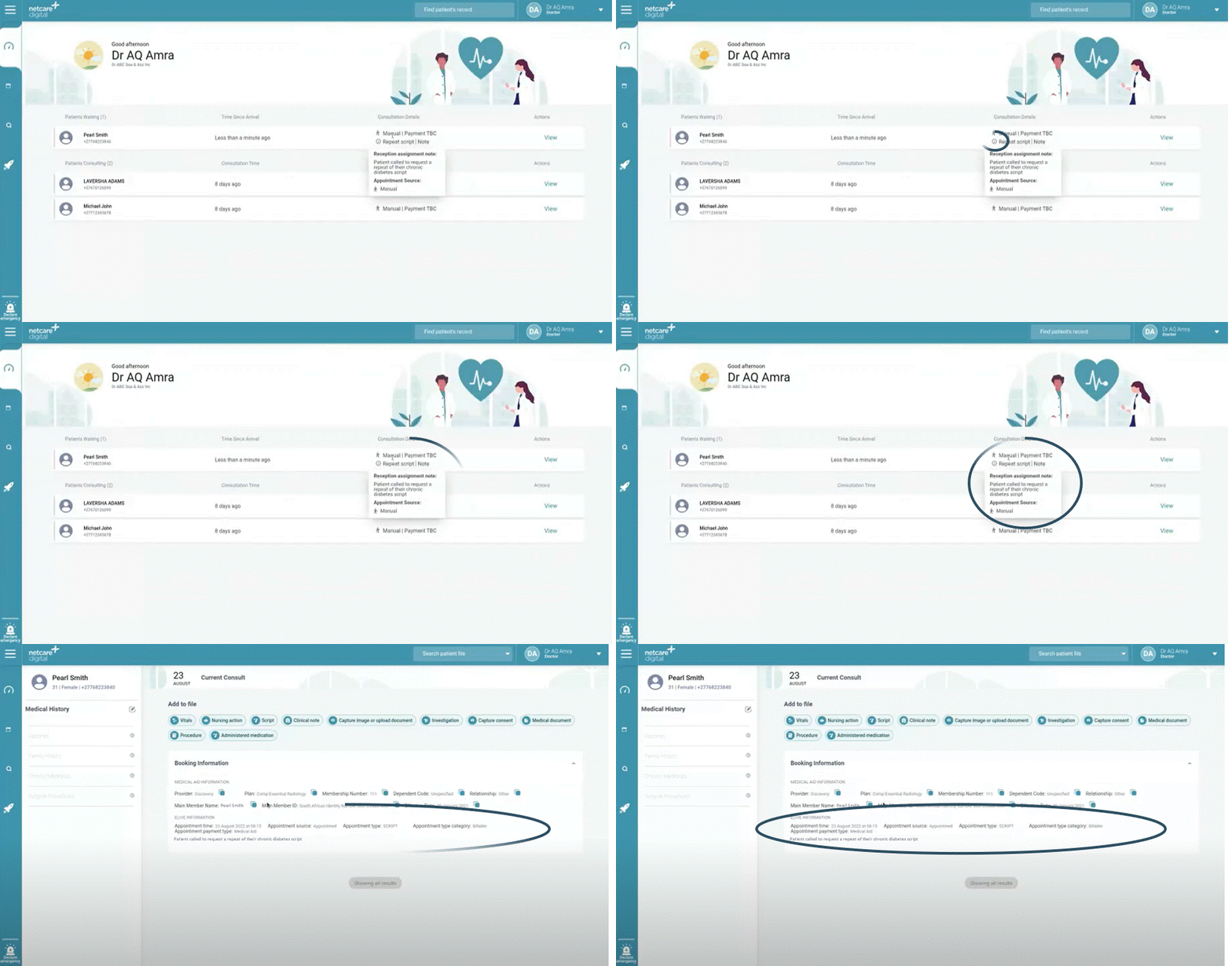
The clinician dashboard has been enhanced to provide more information about your bookings. The system will automatically import the consultation type and notes from E-live, e.g. “Telehealth consult” and reception can add a note for you e.g. ”Patient requires a repeat script”. You can view this information on the dashboard, by hovering on the information button (i), or in the patient file under the booking information section.
|
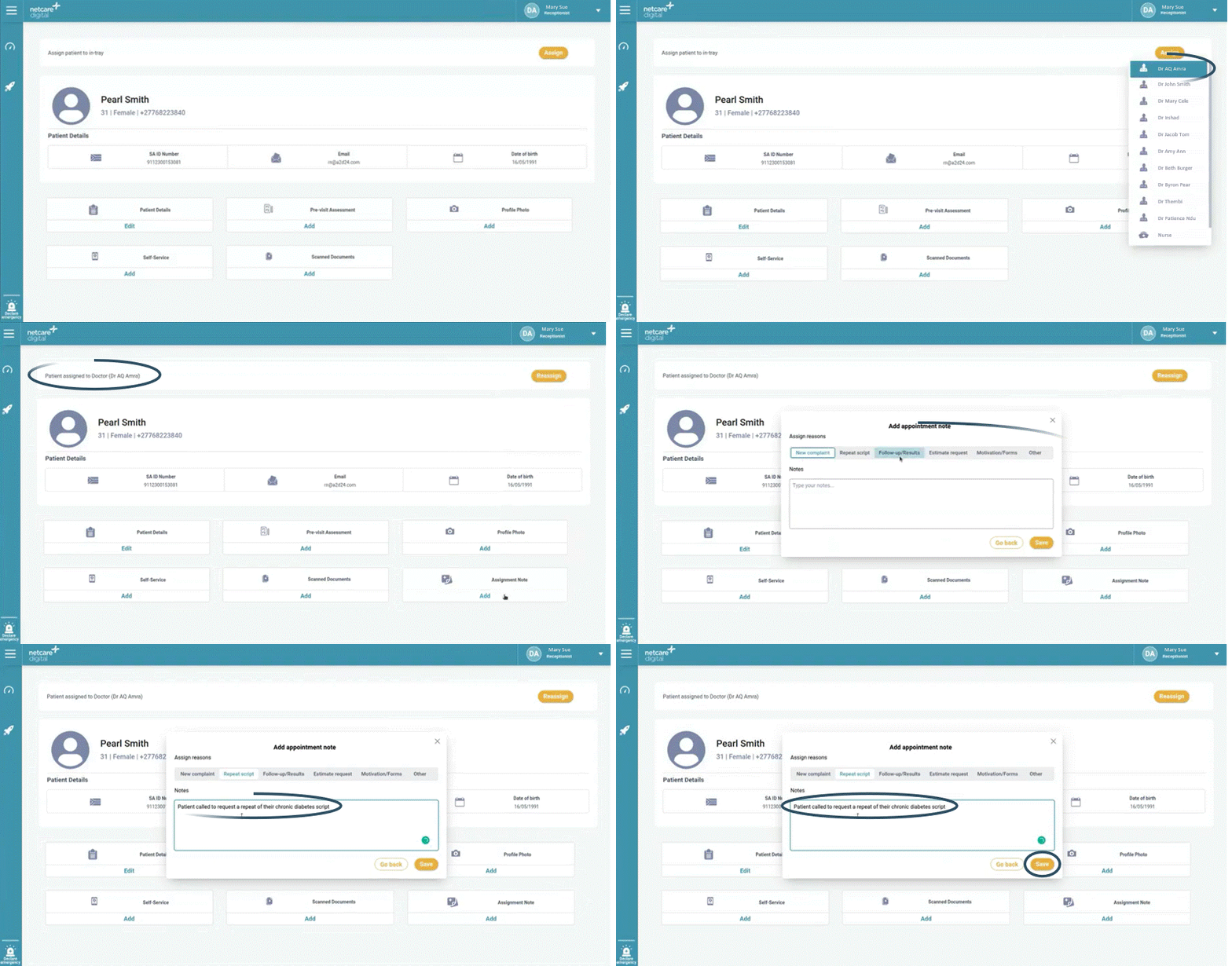
You are now able to add a note to a patient’s file on Heal for the practitioner to see, just like adding a sticky note to a yellow file. You can do this once you have assigned the patient to the relevant practitioner as well as in the patient file under the booking information section, by selecting the “Assignment note” feature, choosing the assignment reason and writing a personalised message e.g., “Patient requires a repeat script”. The information captured will display in the practitioner’s dashboard.
|
Please click on the below button to share your feedback on the Heal application in under 30 seconds. Your feedback is greatly appreciated.
|